Estimated reading time
3 minutes
Website Emergency Preparedness
From wildfire alerts to flood warnings, your website becomes a critical source of information for residents during an emergency. Knowing what to do ahead of time makes all the difference. Here's a cheat sheet to help your team stay organized when it matters most.
1. Give us a heads-up
If your community is dealing with an emergency, let our support team know. This gives us a chance to start monitoring your site's traffic and performance right away and make adjustments proactively, so you don't have to worry about it. We'll stay on top of things throughout the situation and reach out if anything needs your attention.
2. Assign roles internally
Decide ahead of time who's responsible for updating alerts, editing resource pages, and monitoring incoming emails during a crisis. A clear chain of command means less confusion and faster updates when it counts.
3. Create pre-approved message templates
Draft and pre-approve messaging and graphics for scenarios likely to affect your community — flooding, severe weather, wildfire, and others — covering the before, during, and after phases. Getting sign-off from leadership and legal in advance can significantly cut down your response time when something happens.
4. Catch broken links early
Few things are more frustrating during an emergency than a broken link on a page residents are counting on. Small details cause big problems: for example, a period at the end of a URL in a press release or document is often picked up as part of the link, breaking it.
To stay ahead of this:
- Double-check URLs in press releases and documents before they're published.
- Watch for misspellings in URL aliases.
- Review your website logs regularly and add redirects where needed.
Adding a redirect (Drupal):
- Navigate to Configuration > Search and metadata > URL Redirects > Add Redirect.
- Fill in the fields:
- Path: the custom URL alias, internal Drupal path, or path alias you're redirecting from.
- To: the internal Drupal path, path alias, or complete external URL (e.g.
http://example.com/) you're redirecting to.
- Click Save.
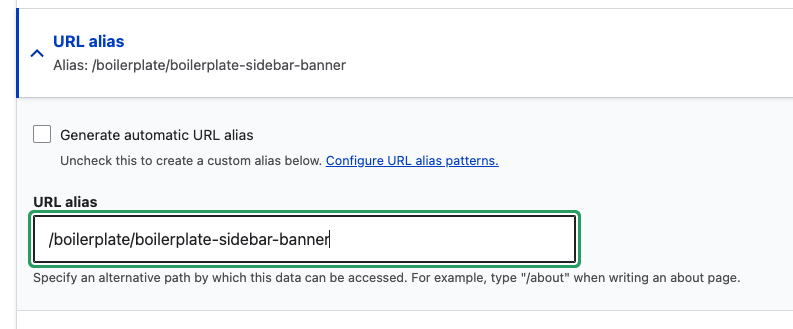
Updating a URL alias (Drupal):
- Under Advanced settings, expand the URL Alias section.
- By default, Drupal generates an automatic alias — if the page is in your menu, this usually reflects its position there.
- To set one manually:
- Uncheck Generate automatic URL alias.
- Type the alias you want, starting with a slash (e.g.
/url-aliasforwebsite.com/url-alias).
- Click Save.
5. Document your update procedures
Written instructions for routine tasks — like redirecting an alert banner, flagging an urgent update, or publishing a notice — help your team move quickly and consistently, even if the usual point person is unavailable.
6. Consider a 'dark site'
A dark site is a simplified version of your homepage built for emergencies — it strips away routine content (like event listings or non-essential calls to action) so residents can find critical alerts and resources immediately.
For our existing clients: more detailed, step-by-step guidance — including video walkthroughs — is available through our client guide. Reach out to connect@upanup.com for any other questions or tips.
Interested in setting one up for your organization? Reach out to connect@upanup.com — we can walk you through what's involved.